Power BI Star Schema: From Raw Data to Reliable KPIs
Most slow or wrong Power BI reports have a modelling problem, not a visual problem. Here is how I go from raw exports to a clean star schema and trustworthy KPIs.
Why does the model matter more than the visuals?
A report is only as reliable as the model behind it. When data is loaded as one huge flat table, filters behave strangely, totals double-count and every new chart needs a new workaround. A star schema fixes this: it is the structure Power BI's engine is designed for. I applied it in a decision-support project on social-security data (see the project).
What is a star schema?
- Fact table — one row per event you measure: a sale, a payment, a declaration. It contains numeric columns (amount, quantity) and keys to dimensions.
- Dimension tables — descriptive attributes you filter and group by: Date, Customer, Product, Region.
- Relationships — one-to-many from each dimension to the fact table, filtering in one direction.
           DimDate
              │
DimCustomer ─ FactSales ─ DimProduct
              │
           DimRegion
Step 1 — Define the grain
Write one sentence: "One row of the fact table = one invoice line" (or one payment, one day per store…). Every column in the fact table must be true at that grain. Most modelling mistakes come from mixing grains in the same table.
Step 2 — Clean and shape in Power Query (or upstream ETL)
- Remove unused columns early.
- Fix types (dates as dates, amounts as decimals).
- Standardise codes and labels (trim spaces, consistent case).
- Split the flat export into the fact table and each dimension, with surrogate keys when source keys are messy.
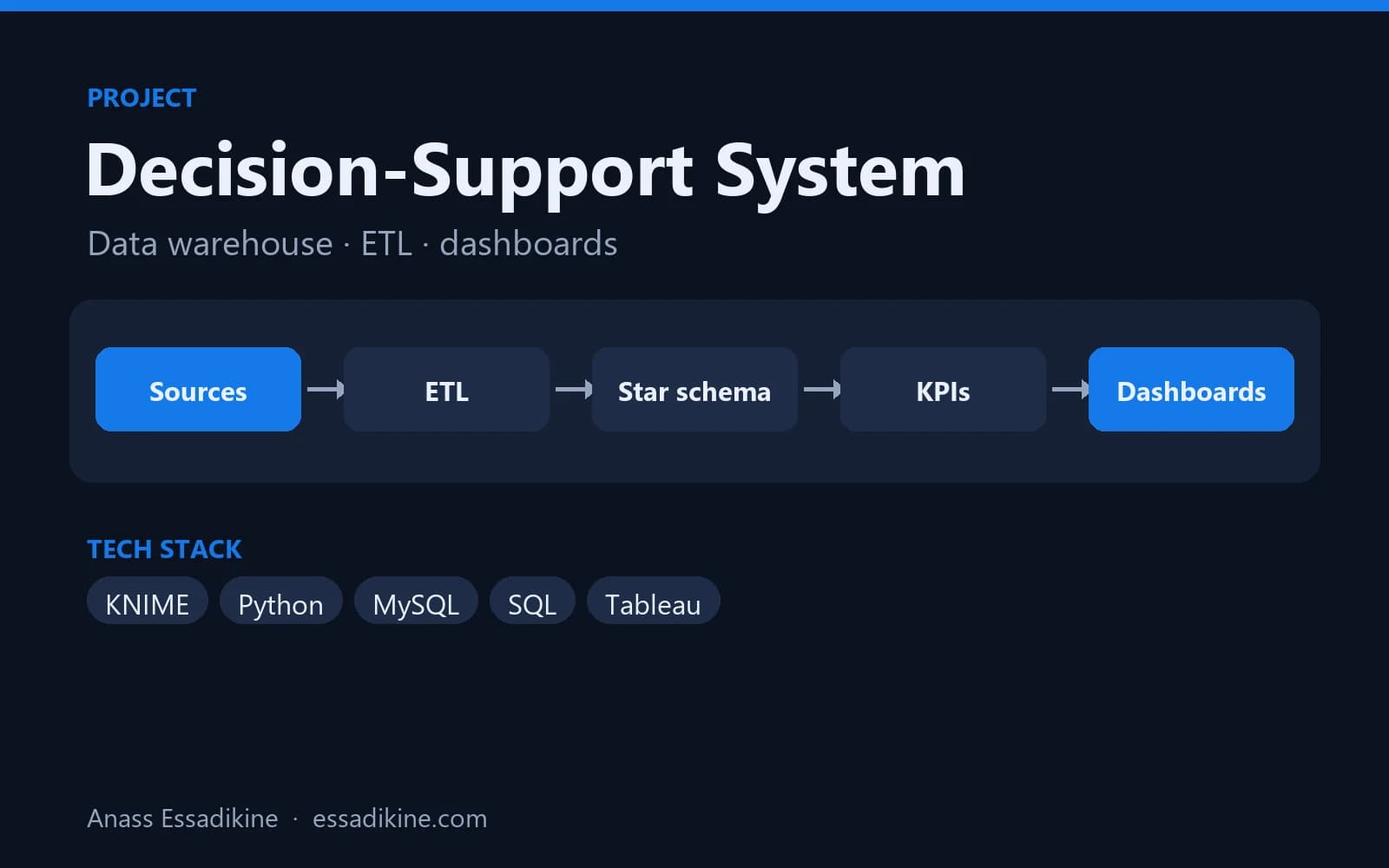
For larger or shared pipelines, do this upstream. In the CNSS project the ETL ran in KNIME and Python and loaded a MySQL warehouse used by the Tableau dashboards.
Step 3 — Always add a proper date table
Do not rely on auto date/time. Create a date table, mark it as a date table and relate it to every date column you analyse:
DimDate =
ADDCOLUMNS (
    CALENDAR ( DATE ( 2020, 1, 1 ), DATE ( 2027, 12, 31 ) ),
    "Year", YEAR ( [Date] ),
    "Month", FORMAT ( [Date], "MMM" ),
    "MonthNumber", MONTH ( [Date] ),
    "YearMonth", FORMAT ( [Date], "YYYY-MM" )
)
Step 4 — Write measures, not calculated columns
Measures are computed at query time and respect filters. A few that cover most dashboards:
Total Sales = SUM ( FactSales[Amount] )

Sales LY =
CALCULATE ( [Total Sales], SAMEPERIODLASTYEAR ( DimDate[Date] ) )

Sales YoY % =
DIVIDE ( [Total Sales] - [Sales LY], [Sales LY] )

Sales MTD = TOTALMTD ( [Total Sales], DimDate[Date] )
Keep all measures in a dedicated empty table (for example _Measures) so report builders find them in one place.
Step 5 — Check the KPIs before designing pages
Compare a few totals with the source system: total for one month, one region, one product. If they do not match, the problem is the grain or a relationship, never the chart. Only then design the pages: one question per page, the main KPI at the top left, filters on the side.
Common mistakes to avoid
- Bi-directional relationships everywhere (they create ambiguous filters).
- Many-to-many relationships between two fact tables — connect them through shared dimensions instead.
- Text keys with trailing spaces that silently break relationships.
- Hard-coded dates in measures instead of a date table.
Practical tip
Define the grain before anything else. Once the fact table is right, each new indicator is usually a short measure instead of a new table or a workaround.
Need a Power BI dashboard?
I build Power BI and Looker Studio dashboards on clean data models for companies in Morocco and remotely. See my services or contact me.

Related projects
 Data Analytics & BIAcademic project · 2025
Decision-Support System for Social Security Data (CNSS)
A star-schema data warehouse fed by ETL flows, with analytics dashboards for decision-makers.
Frequently asked questions
For a single small table it is not, but as soon as you combine several sources or need filters by date, customer or product, a star schema makes reports faster and measures much simpler.